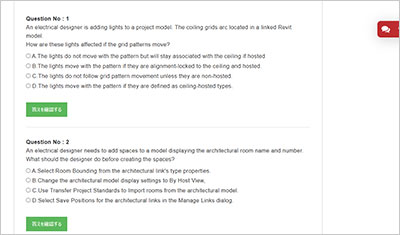
サンプル問題 1: What should an electrical designer do to associate a lighting device with light fixtures in a model?
A: Create a switch system using the light fixtures to define the system and add the switch.
B: Create an electrical circuit including the light fixtures and switch as one selection.
C: Create a switch system by selecting a switch and then adding lights
D: Create an electrical circuit using the light fixtures to define the system and add the switch.
正解:C
Explanation: In Autodesk Revit Electrical Design, a lighting device (switch) must be associated with lighting fixtures through a switch system, not through electrical circuits. Switch systems are independent of lighting circuits and wiring, as they are intended to represent the control relationship between a light switch and the lighting fixtures it operates. According to the Autodesk Revit MEP User’s Guide (Chapter 17 C Electrical Systems, pages 475C478), the official method is described under “Creating a Switch System.” “You can assign lighting fixtures to specific switches in a project. The switch system is independent of lighting circuits and wiring.” (Revit MEP User’s Guide, p. 475) “To create a switch system: Select one or more lighting fixtures in a view, and click Modify | Lighting Fixtures tab ➤ Create Systems panel ➤ Switch. Click Switch Systems tab ➤ System Tools panel ➤ Edit Switch System. Click Add to System, and select one or more lighting fixtures. Click Select Switch, and select a switch in the drawing area. Click Finish Editing System.”** (Revit MEP User’s Guide, p. 476) How It Works: The switch system links a lighting device (switch) with lighting fixtures, enabling Revit to manage how light fixtures respond to specific switches. Unlike electrical circuits, which define power flow and load connections to panels, the switch system defines control logic (which lights are turned on/off by which switch). The designer begins by selecting the switch and then adding lights to its system, ensuring all lights associated with that switch are grouped correctly. Supporting Extract from Revit Documentation: “You can also create a lighting switch system by right-clicking the connector for a lighting fixture and clicking Create Switch System.” (Revit MEP User’s Guide, p. 475) “Add lighting fixtures to the switch system… Click Select Switch and select a switch in the drawing area.” (Revit MEP User’s Guide, p. 476) “The switch system is independent of lighting circuits and wiring.” (Revit MEP User’s Guide, p. 475) Conclusion: To associate a lighting device (switch) with light fixtures in a Revit electrical model, the designer must create a switch system. This is done by selecting the switch, then adding the desired lighting fixtures to that system using the Add to System and Select Switch tools under the Switch Systems tab.
サンプル問題 2: An electrical designer needs to add a drafting view to a model from another project. What is the method to do this?
A: Select Transfer Project Standards, select the desired project, and then select the drafting view.
B: Select Open, select the desired project, right-click the desired drafting view, and then copy/paste
C: Select Link Revit, browse to the desired model, and then select desired drafting view
D: Select Insert from File, select Insert Views from File, browse to the desired project, and then select the drafting view.
正解:D
Explanation: In Autodesk Revit, a drafting view is a 2D view that contains detail information not directly associated with the model. When an electrical designer needs to reuse a drafting view from another project (for example, standard details or symbols), the correct method is to use the Insert Views from File command under the Insert tab. The Autodesk Revit MEP User’s Guide C Chapter 48 “Detailing” (page 1072) describes the process as follows: “Inserting a Drafting View from Another Project Click Insert tab ➤ Import panel ➤ Insert from File drop-down ➤ Insert Views from File. In the Open dialog, select a project file, and click Open. The Insert Views dialog opens, displaying all the views that are saved in that project. Select the desired drafting views and click OK.” (Revit MEP User’s Guide, p. 1072) This command imports the drafting view into the current Revit model while preserving annotations, filled regions, detail components, and text. It ensures that any standard electrical symbols, notes, or schematics created previously can be directly reused without rebuilding the detail from scratch. If any duplicate type names exist, Revit automatically uses the types and properties from the current project, displaying a warning if necessary. “Revit MEP creates a new drafting view with all the 2D components and text. If you have duplicate type names, the type name and properties from the current project are used.” (Revit MEP User’s Guide, p. 1072) Supporting Documentation Extracts: “Saving Drafting Views to an External Project Select a drafting view in the Project Browser. Right-click the view name, and click Save to New File.” (Revit MEP User’s Guide, p. 1071) “The saved project can then be used later to insert drafting views into another Revit project using Insert Views from File.” (Revit MEP User’s Guide, p. 1072)
サンプル問題 3: An electrical designer has noticed lighting fixtures present in an architectural linked model. Which tool should be used to place an instance of those fixtures in the current electrical model while maintaining the position from the architectural model?
A: Copy/Monitor
B: Coordination Review
C: Reconcile Hosting
D: Reload Latest
正解:A
Explanation: When lighting fixtures placed in an architectural linked model need to be replicated in the electrical model while maintaining their exact positions, the correct tool is Copy/Monitor. This Revit feature allows the electrical designer to copy elements―like lighting fixtures―from a linked model into their project, while establishing a monitoring relationship between the original (architectural) and copied (electrical) instances. From the Autodesk Revit MEP User’s Guide C Chapter 55 “Multi-Discipline Coordination” (pages 1349C1357): “Use the Copy/Monitor tool to copy MEP fixtures from an architectural model into an MEP project, and monitor them for changes.” (Revit MEP User’s Guide, p. 1350) “To copy fixtures from a linked model: Click Collaborate tab ➤ Coordinate panel ➤ Copy/Monitor ➤ Select Link. Select the linked architectural model in the drawing area. Click Copy and select the lighting fixtures to copy. Click Finish. Revit MEP copies the fixtures to the current project and establishes monitoring relationships.”* (Revit MEP User’s Guide, p. 1356) Behavior and Benefits: The copied lighting fixtures maintain the same location, orientation, and type mapping as in the linked model. Any changes (move, delete, or modify) made by the architect in the linked model will trigger a coordination review in the electrical model. This ensures accurate positioning and easy coordination between disciplines. “When you select a copied fixture in the current project, the monitor icon displays next to the fixture, indicating that it has a relationship with the original fixture in the linked model.” (Revit MEP User’s Guide, p. 1357) “If copied fixtures are moved, changed, or deleted in the linked model, Revit MEP notifies the engineers of the changes during Coordination Review.” (Revit MEP User’s Guide, p. 1357)
Autodesk RVT_ELEC_01101試験準備をしていますか?それとも自分は全部できそうです。復習する必要がないと思いますか?それとも自分は何もできないような気がします。どうすればいいでしょうか?実は、この問題を解決するのは難しくないです。勉強者がやるべきのは分解分析をマスターすることです。ここではRVT_ELEC_01101問題集を使って学習中の課題を確認し、知識を整理してAutodesk Certified Professional in Revit for Electrical Design試験の準備を進めます。
その次に、非常規の試験ポイントのテーマは多すぎてこだわる必要はなくて、重要な試験点のテーマはきっと知識の点をわかります。特にAutodesk Certified Professional in Revit for Electrical Design試験は試験資料ポイントが多いです。一つの問題は知識ポイントだけではなく、復習する時はまとめをマスターして、記憶を分類します。知識ポイントが覚えていないか、間違えていないかのために点数をなくしてはいけません。